
Digital Life
Make a Short Screen Recording That Someone Can Actually Follow
Plan and record a clear screen tutorial with safe sample content, readable steps, and useful text support.
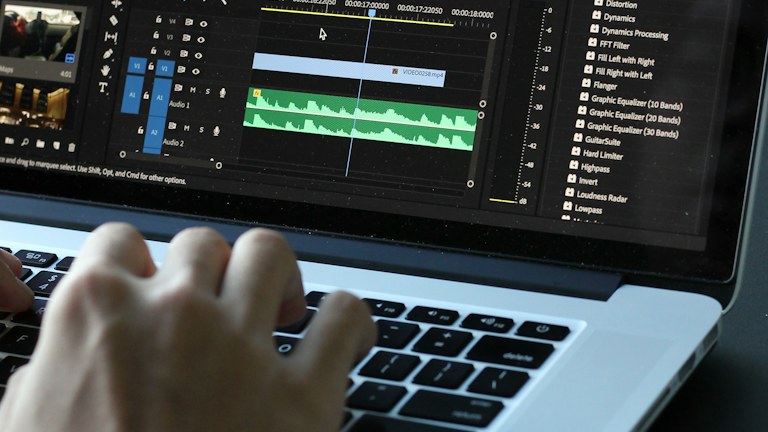
Photo: Matthew Kwong / Unsplash. Stock photograph for illustration.
In this guide
- Define the starting point and the finish
- Prepare a safe demonstration environment
- Outline actions and explanations separately
- Frame the screen for the viewer's display
- Narrate decisions at a manageable pace
- Trim distractions without hiding essential steps
- Add text support and an informative title
- Test the recording through a fresh pair of eyes
A screen recording can explain a small computer task more clearly than a long message. It can also leave the viewer hunting for a tiny pointer while you narrate an unrelated problem. The difference usually begins before you press Record. A useful tutorial has one audience, one task, and a visible result. You show the decisions that matter, leave room for the viewer to follow, and remove details that distract from the purpose.
This guide focuses on ordinary demonstrations, such as showing a teammate how to update a shared document or helping a relative find a setting. You do not need professional production equipment. You need a clean example, a short outline, permission to share what appears, and a way to check the recording as a first-time viewer.
Define the starting point and the finish
Write a sentence describing what someone will be able to do after watching. Make it concrete: create a folder and share it with the intended recipient, rather than understand cloud storage. Then write down what must already be true. The viewer may need an account, a particular document, or a role that allows editing. Include those prerequisites in the introduction so people know whether the instructions apply to them.
Choose a finish that can be seen on screen. A changed setting, a correctly named file, or a completed preview gives the viewer a way to compare their result. If the task has several unrelated outcomes, split it into separate recordings. A small recording that solves one problem is easier to update and easier to find later.
Prepare a safe demonstration environment
Use sample content whenever possible. Replace personal names, addresses, account numbers, customer information, and private messages before recording. Check the browser tabs, desktop, recent-file lists, and any menus you will open. Notifications can expose information even when the main document is harmless, so silence optional alerts for the recording period and restore your normal settings afterward.
Do not record credentials being entered. Start after signing in, or cut that stage entirely. If someone else's information must appear, obtain the appropriate permission before sharing it. A blur added later can fail if another frame or a reflected preview reveals the same detail. Removing sensitive material from the demonstration at the start is easier to verify than repairing a complicated recording afterward.
Outline actions and explanations separately
Make a short outline with the action on one side and the reason on the other. For example, you might open the sharing menu, explain the difference between viewing and editing, then choose the permission required for the example. This keeps your narration from merely reading button labels while omitting the decision the viewer actually needs to understand.
Rehearse once without recording. Notice where the interface takes time to load, where you need to scroll, and which menus cover another important area. You can then plan a pause instead of filling it with unrelated talk. If a step behaves unpredictably, solve that issue before recording rather than making the viewer watch your troubleshooting unless troubleshooting is the explicit subject.
Frame the screen for the viewer's display
Capture the window or region needed for the task rather than an entire large desktop. Close unnecessary side panels and increase the interface scale if the text is difficult to read. Keep enough surrounding context that the viewer can locate the control on their own screen. An extreme crop may make a button readable while hiding how to reach it.
Record a short sample and play it on a smaller screen. Check whether menu text remains legible and whether the pointer is easy to locate. If you use pointer highlighting, keep it restrained. Large animated effects can cover the very option you are demonstrating. A deliberate pause with the pointer beside a control often communicates more than constant motion across the screen.
Narrate decisions at a manageable pace
Say what you are about to do, perform the action, and briefly identify the result. Avoid long stretches of rapid clicking followed by an explanation of what already happened. Use the labels visible in the current interface, but also describe the purpose of a control so the tutorial remains understandable if its position changes later.
Speak naturally and leave small pauses between stages. You do not have to fill every second. If a term is unfamiliar, explain it once in ordinary language. Do not promise that every account will look identical; identify relevant differences you already know, such as access permissions or a different device layout. Where a setting is optional, say so rather than making a personal preference sound mandatory.
Trim distractions without hiding essential steps
Review the recording and remove long waits, false starts, and unrelated navigation. Keep the steps needed to reproduce the result. If you skip a lengthy process, say what was skipped and what the viewer should wait for. A smooth edit should not create the impression that a process finishes instantly when it normally requires a visible confirmation or a separate action.
A brief correction can be clearer than an elaborate visual effect. For a small mistake, record that section again if practical. If you add text labels, make them readable and keep them away from important controls. Avoid background music that competes with instructions. The recording's value lies in its clarity, not in the number of editing features it demonstrates.
Add text support and an informative title
Provide a short written summary of the steps alongside the video. Include any file names, links, or settings the viewer needs to copy accurately. Captions help people follow without sound, but automatically generated captions need review. Names, interface labels, and numbers are particularly easy to mishear. Correct meaning-changing mistakes before sharing the recording.
Choose a title that describes the task and, where useful, the relevant tool or version. A title such as Share a planning document with view-only access is more helpful than Quick tutorial. Add the recording date if the interface changes regularly. If the recording covers several stages, simple timestamps can help a returning viewer jump directly to the part they need.
Test the recording through a fresh pair of eyes
Ask someone unfamiliar with the task to follow the recording using the sample materials. Watch where they hesitate without immediately explaining the answer. Their questions show which assumptions remain hidden. Perhaps a prerequisite was missing, or you referred to a menu as here without naming it. Fix the unclear segment or add a precise note instead of blaming the viewer for moving slowly.
Finally, check the sharing permissions from the recipient's perspective. Confirm that the intended audience can open the recording and that it is not exposed more widely than intended. Keep the source outline so updates are manageable. When the process changes, replace or clearly retire the old instructions. A tutorial earns trust by showing a reproducible task and remaining honest about the conditions under which it works.