
Digital Life
Set Up Phone Notifications Around the People and Tasks That Matter
Choose which phone alerts deserve attention, quiet routine updates, and test your setup during an ordinary week.
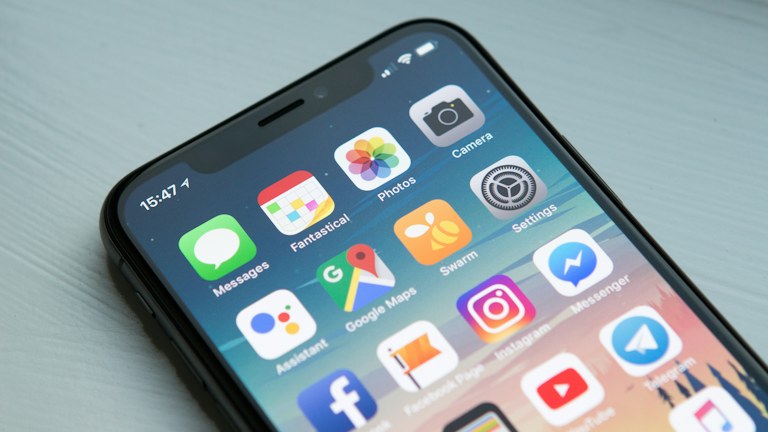
Photo: William Hook / Unsplash. Stock photograph for illustration.
In this guide
- Observe a normal day before changing everything
- Give each app a communication role
- Separate sound, appearance, and stored information
- Make interruptions fit the part of your day
- Reduce badges that no longer tell you anything
- Protect the information visible on your screen
- Agree on expectations with the people involved
- Review the setup with evidence, not a perfect score
A phone can interrupt you for a delivery update, a family message, a game reward, and a reminder you no longer recognize. These alerts arrive through the same small screen, but they do not deserve the same response. A useful notification setup separates information you need promptly from information you prefer to check when you have time. The goal is not a perfectly silent device. It is a device whose interruptions usually have a reason you understand.
You can make that change without replacing your phone or buying another app. Start with the alerts already arriving, make a few deliberate decisions, and test the result during an ordinary week. The details of the settings vary between devices, so use the names and explanations shown on your own phone rather than following an old screenshot.
Observe a normal day before changing everything
For one day, notice which alerts actually change what you do. A message about a late pickup may require an immediate reply. A shipping update may be useful later. A recommendation from a shopping app may not be something you asked to receive at all. Write down a handful of examples, including the app, the subject, and whether the interruption helped. You do not need to record private message content.
Also notice when you miss something important. Perhaps useful reminders disappear among promotions, or you silence a noisy group and then overlook a change of plans. These are different problems. Turning every notification off would address the noise while leaving the coordination problem unresolved. Your observations should help you design a smaller, clearer set of signals.
Give each app a communication role
Think about what you expect each app to tell you. A calendar may exist to remind you of appointments, while a photo app may be something you open voluntarily. An app can have several notification categories, so inspect the available controls before making an all-or-nothing decision. Where supported, retain the transaction or conversation updates you use and turn off recommendations you do not want.
Use a simple question: if this appeared two hours later, what would go wrong? Sometimes the answer is substantial, such as missing a meeting change. Often the answer is nothing. That question does not decide every case, but it exposes alerts that have been treated as urgent merely because the default setting made them audible.
Separate sound, appearance, and stored information
A notification does not always need to make a sound to remain available. Your device may let an app appear in a notification list while withholding banners, lock-screen previews, or sounds. Explore those choices independently. A quiet status update can still be useful when you deliberately check it. An alert about a conversation you are coordinating might deserve a more noticeable presentation.
Avoid creating so many sound categories that you have to memorize a private code. Two or three meaningful distinctions are usually easier to maintain than a different sound for every service. Test the arrangement with someone you trust, particularly if you rely on audible or visual alerts for access. Choose signals that work for your circumstances rather than the most discreet option in theory.
Make interruptions fit the part of your day
Consider the situations in which the same alert has a different value: focused work, time with family, a commute, or sleep. If your phone supports scheduled focus or quiet modes, begin with one predictable period. Make the schedule modest enough that it matches your actual routine. An elaborate calendar of modes that regularly activates at the wrong time can become another source of confusion.
Read the exceptions carefully. Decide which people or applications need to reach you during that period, then test an ordinary message or call. Do not assume a feature will handle every urgent situation exactly as you imagine. Explain to close contacts how to reach you when something truly needs prompt attention, using a method you have both agreed on.
Reduce badges that no longer tell you anything
A badge showing hundreds of unread items may have stopped communicating a useful fact. If you never intend to clear that backlog, consider whether the badge belongs on your home screen. You can often keep the application and its contents while removing the persistent count. The useful question is whether the number helps you make a decision, not whether every inbox has reached zero.
For an app you check regularly, a scheduled review may work better than a constant badge. For example, you might review delivery updates after lunch or community announcements in the evening. Pair that habit with an existing activity, and keep it realistic. A quiet app without any plan for checking essential information can simply move the problem out of sight.
Protect the information visible on your screen
Consider what appears when your phone is locked or lying on a shared table. Some notifications show message text, account details, or appointment descriptions. Look for preview controls if you would prefer a general alert without the full content. Test the result from the locked screen rather than assuming the settings label tells the whole story.
This is especially useful when you share a workspace or hand your phone to someone to show a photo. It is not a substitute for the device's broader security settings, but it makes everyday information exposure more deliberate. If a work or school device has managed policies, use the available controls and ask the administrator about restrictions instead of trying to bypass them.
Agree on expectations with the people involved
A quieter phone works best when people do not interpret every delayed response as a problem. Tell regular collaborators when you usually check messages and which channel you use for time-sensitive changes. Keep the explanation short and practical. You are establishing a coordination habit, not asking everyone else to adopt your settings.
Group conversations deserve their own decision. A planning group may need attention before an event and much less afterward. Where the app supports it, temporary muting can be more appropriate than permanently leaving or disabling every group alert. Revisit the setting when the purpose changes. The same conversation can move from urgent coordination to casual discussion within a few days.
Review the setup with evidence, not a perfect score
After a week, ask three questions: which interruptions were still unnecessary, which important messages were missed, and which settings were inconvenient? Adjust the specific causes. If one app remains noisy, investigate its categories. If you missed an appointment, check the reminder time and delivery method. Resist replacing the whole system because one part needs correction.
Keep a short note of the choices that worked, particularly before changing devices. Review new apps when you install them, rather than allowing another year of defaults to accumulate. Your finished setup should be easy to explain: certain people and tasks can interrupt you, routine updates wait quietly, and optional content is there when you choose to open it. That clarity is more useful than any particular number of notifications.